
 By Sandeep Saxena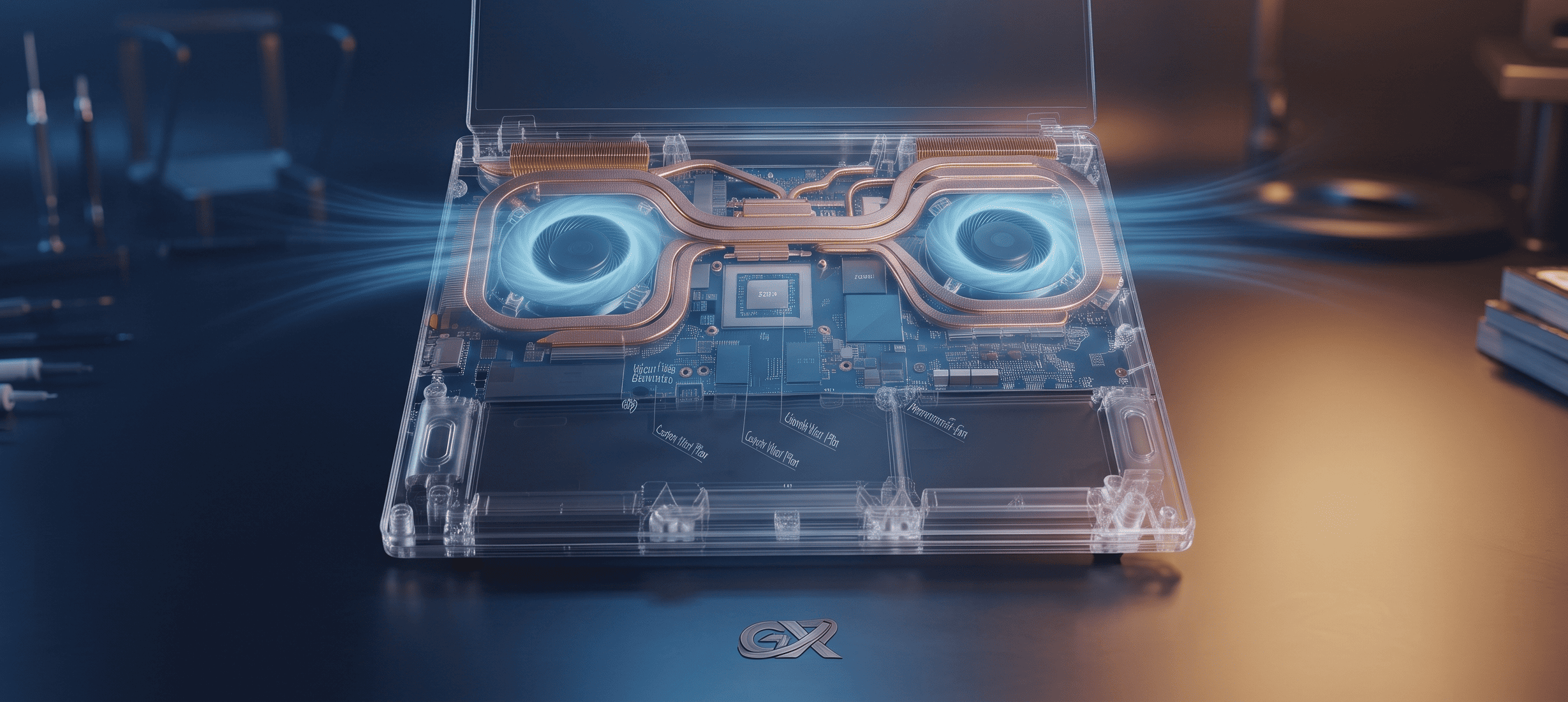
Modern gaming notebooks pack desktop-grade silicon into chassis measuring less than an inch thick. While high refresh rate displays and top-tier mobile GPUs deliver stunning visual fidelity, prolonged gaming sessions push hardware dissipation limits hard. Within minutes of launching a heavy title, CPU temperatures can spike into the dreaded 95°C–100°C zone, accompanied by jet-engine fan noise and jarring stutter.
This performance drop is driven directly by gaming laptop thermal throttling. When internal sensors detect temperatures reaching critical silicon limits, hardware switches throttle clock speeds down sharply to prevent hardware damage, tanking your 1% low frame rates in the process. Fortunately, taming thermals does not require voiding your warranty or turning your machine into an unbearable wind tunnel.
Here is an engineering-backed guide to mitigating gaming laptop thermal throttling and dropping CPU temperatures by up to 10°C while preserving stable, high-refresh-rate gameplay.
What Is Thermal Throttling and Why Does It Happen?
To properly diagnose gaming laptop thermal throttling, you need to understand that mobile chassis share heat dissipation pipes between the processor and graphics card. Modern multi-core chips push clock speeds until thermal ceilings trigger emergency protection.
Unlike full-sized desktop towers equipped with massive liquid radiators, gaming laptops share compact copper heat pipes between the CPU and discrete GPU. Modern multi-core mobile processors are configured from the factory to opportunistically boost clock frequencies until they hit predefined thermal ceilings—known as TjMax (Thermal Junction Maximum).
When your cooling fin stack cannot exhaust thermal energy fast enough, the processor pulls back its wattage draw and reduces clock frequencies. You experience this as sudden frame drops during intense combat, micro-stutters in open-world titles, and an uncomfortably hot keyboard deck. To check your specific processor’s hard thermal thresholds, refer to the official Intel Core Processor Temperature Specifications or AMD thermal design guidelines.
4 Proven Steps to Prevent Gaming Laptop Thermal Throttling
1. Disable Aggressive CPU Boost (The 5-Minute Fix)
By default, Windows aggressively clocks modern mobile processors to their absolute maximum frequency even during lightweight tasks or GPU-bound games. In many titles, running at 3.8 GHz instead of a boost-pinned 4.4 GHz yields virtually identical FPS while cutting 20W to 30W of waste heat:
-
Open Edit Power Plan via Windows Search.
-
Click Change advanced power settings > expand Processor power management.
-
Locate Processor performance boost mode (unhide this setting via Windows registry if omitted by your OEM).
-
Change the value from Aggressive to Efficient Enabled or Disabled.
-
Real-World Impact: Resolves gaming laptop thermal throttling in CPU-heavy scenarios, dropping temperatures by 7°C to 12°C instantly with virtually zero impact on average frame rates in GPU-heavy titles.
2. Replace Bloated OEM Software with Lightweight Alternatives
Pre-installed manufacturer management suites—such as ASUS Armoury Crate, Alienware Command Center, or HP OMEN Gaming Hub—run dozens of continuous telemetry background services. These background tasks ping CPU threads constantly, preventing idle cores from entering low-power C-states:
-
On ASUS laptops, community utilities like G-Helper offer a single, lightweight executable that replaces background services while providing direct fan curve and power envelope control.
-
Lightweight tuning utilities let you manually calibrate Short and Long Power Limits (PL1/PL2 or SPL/sPPT), allowing you to cap sustained CPU wattage to an efficient thermal sweet spot (e.g., dropping sustained draw from 65W down to 45W).
-
By capping sustained wattage and trimming resource-heavy telemetry tasks, you directly eliminate background causes of gaming laptop thermal throttling during long gaming sessions.
3. Elevate the Chassis and Clear Radiator Dust
The single most common physical bottleneck causing gaming laptop thermal throttling is air starvation. Intake vents sit directly under the bottom plate, leaving only 2 to 3 millimeters of breathing room on a flat desk:
-
Propping up the rear feet of your laptop with a stand or rubber risers by just 1 inch dramatically increases intake airflow volume, shaving 3°C to 5°C off thermals.
-
Never operate gaming notebooks on soft surfaces like blankets, beds, or carpets, which suffocate intakes and draw lint into cooling fins. Clear out heatsink fins every three to four months using a can of compressed air.
4. Optimize In-Game Frame Rate Caps
Running uncapped frame rates forces both the CPU and GPU to work at 100% saturation continuously, rendering redundant frames beyond your screen’s physical capability.
Capping your frame rate via RivaTuner Statistics Server (RTSS) or your GPU driver software to match your panel (e.g., capping at 141 FPS on a 144Hz G-Sync display) reduces render loads during menus and less demanding scenes, maintaining substantially cooler sustained thermals.
Performance vs. Temperature Optimization Matrix
The table below illustrates the most effective hardware and software tweaks to eliminate gaming laptop thermal throttling based on temperature drops and frame rate impact:
| Optimization Method | Complexity Level | Expected Temp Drop | Impact on In-Game FPS |
| Rear Chassis Elevation (Laptop Stand) | Very Low (Physical) | 3°C – 5°C | Zero impact (Improves sustained boost stability) |
| Tuning Processor Boost Mode | Low (Windows Setting) | 7°C – 12°C | 0% to 3% drop in CPU-heavy esports; None in AAA titles |
| Bloatware Removal / Lightweight Utility | Medium (Software) | 4°C – 8°CPositive | Positive (Eliminates micro-stutter & 1% low frame drops) |
| Capping FPS to Monitor Refresh Rate | Low (Driver/RTSS) | 5°C – 10°C | None (Smoother frame pacing and cooler thermal floor) |
Knowing When to Repaste Thermal Interface Material
If your notebook is over two years old and spikes instantly to 95°C+ even at modest wattage levels, your factory thermal paste has likely suffered from the “pump-out effect” or dried out.
Replacing degraded paste with modern phase-change thermal interface materials (such as Honeywell PTM7950) or high-viscosity non-conductive paste restores direct thermal transfer between the silicon die and copper vapor chambers, permanently eliminating persistent gaming laptop thermal throttling.
Recommended Laptop Cooling & Maintenance Gear
(Equip your gaming setup with verified accessories to maximize thermal dissipation and hardware longevity)
-
Ergonomic Aluminum Portable Laptop Riser Stand:
-
High-Pressure Compressed Air Duster Can for PC Cleaning:
For detailed PC hardware reviews, gaming benchmarks, and tech optimization guides, follow GadgetXprt.com.